
Interactive Whiteboard for Conference Room: A Procurement Guide for Buyers
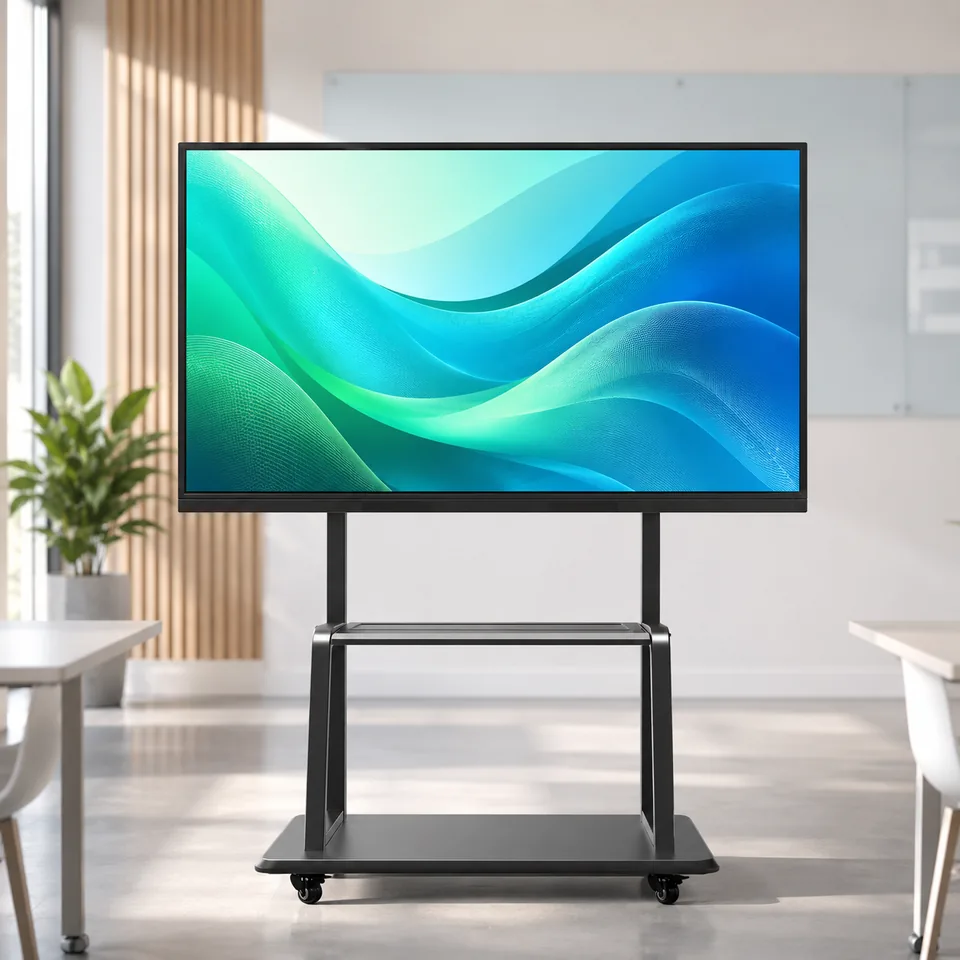
An interactive whiteboard for conference room use replaces the projector-plus-passive-screen pairing with a single 4K flat panel you touch, annotate, and cast to. Choose it by matching five procurement dimensions — brightness, compute, touch, operating hours, and warranty — to how many hours your room actually runs each day, not to a vendor’s feature list. This guide gives buyers that operating-hours-to-spec framework.
What Makes a Conference-Room Interactive Whiteboard Different From Consumer Displays
An interactive display for conference room use is commercial-grade hardware, not a consumer television or tablet in a big frame. It turns on instantly, maintains consistent brightness over a long lifespan, and lets multiple people write at once without fighting over a single marker — none of which a consumer panel is engineered to do daily at scale ([2]). The mindset is “buy it once, run it daily.”
For a practical vendor example, readers can review Outdoor LED Displays for Transit & Smart City Projects · Wintouch.
- Commercial interactive flat panel: 4K floor, multi-touch, embedded compute, cloud whiteboard sync
- Consumer TV/tablet: single-touch, limited OS, no annotation workflow, no burn-in certification
Match Brightness and Anti-Glare Glass to Meeting-Room Lighting
Start the spec sheet with the room, not the panel. A 65-inch smart board for conference room use must stay legible under the actual lighting your room produces — daylight, overhead fluorescents, or window glare.
Brightness nits by room type
| Room condition | Suggested brightness |
|---|---|
| Dim, projector-less room | 300–350 nits |
| Standard indoor meeting room | 350–400 nits |
| Bright daylight or window glare | 400+ nits |
Brightness in the 350–400 nit range is generally sufficient for indoor use, while panels below 300 nits tend to appear washed out ([1]).
Anti-glare glass and viewing angles
Anti-glare glass cuts reflections so wide conference tables keep every seat readable. It also reduces eye fatigue during long sessions, which is why it matters more in a daily-use meeting room than in a home office.
Pick the SoC and Embedded Computing That Match Your Workload
The processor drives annotation latency, whiteboard app responsiveness, wireless casting, and video conferencing — so the compute decision determines how the panel feels in use.
SoC vs. OPS embedded computing
A SoC (system-on-chip) keeps the OS integrated and reliable; an OPS slot adds a removable computer module you can upgrade later. For a smart board for office deployment, OPS lets you raise memory or move to a newer OS without replacing the whole display, protecting the hardware investment when software demands grow.
When you need Windows vs. Android
Integrated Android covers casting and built-in whiteboarding well. Choose an embedded Windows system when the room runs Teams Rooms, Zoom Rooms, or full desktop applications, since those workflows expect a PC-grade environment.
Set Touch Specs for Real Multi-User Meeting Floors
Touch capability is the difference between a whiteboard people use and one people ignore. Plan for simultaneous, not sequential, users.
PCAP vs. infrared touch
PCAP (projected capacitive) delivers finer, faster input than infrared and resists false triggers, making it the default for precise annotation. Infrared suits simpler, larger-format needs where precision is less critical.
Touch points and writing latency
Ten or more simultaneous touch points is the practical threshold for multi-user workflows; below that, two people annotating at once create input conflicts. Good panels register ink in under 8ms, which feels natural, while panels over 20ms feel sluggish ([2]).
Minimum spec for simultaneous annotation
Spec at least 10 touch points (20 is better for dense presentations) and sub-8ms writing latency so two people can annotate side by side without steering each other’s cursor.
Choose the Right Operating Hours and Burn-In Standard
Specify operating hours before you sign anything. A corporate-lobby or training floor runs several hours more per day than a standard meeting room, which raises panel-life and warranty demands above consumer hardware ([2]).
Reading the spec: operating hours per day
Check the rated operating hours per day. Residential panels assume a few hours; commercial panels are certified for longer continuous use.
Burn-in testing and commercial-grade panels
Commercial panels are burn-in tested so static logos and dashboards don’t leave permanent ghost images. A 65 inch smart whiteboard for meetings that sits idle in a lobby is exactly the use case burn-in testing protects against.
Warranty terms for 24/7 use
Read the warranty for the hour rating it covers. Commercial warranties back extended run times; a consumer warranty voids once the panel runs beyond its rated hours. Match the tier to your room’s true schedule.
Education vs. Corporate Deployment: Where Requirements Diverge
Deployment shape drives the spec. Education moves panels between rooms and absorbs repeated touch; corporate meeting rooms fix a wall mount and sync whiteboards to the cloud.
| Criterion | Education deployment | Corporate meeting room |
|---|---|---|
| Mounting | Mobile stands, frequent moving | Fixed wall mount |
| Video conferencing | Rarely the focus | Native Teams Rooms / Zoom Rooms |
| Whiteboard sync | Classroom software | Cloud whiteboard sync |
| Touch abuse | High, repeated writes | Moderate, multi-user annotation |
| Panel count | Per-classroom devices | One shared room panel |
So while the best interactive smart board for business pairs hardware with VC integration, an education panel prioritizes wall mount vs mobile stand flexibility and wireless screen casting across rooms.
How to Choose an Interactive Whiteboard: A 5-Step Buyer Checklist
Use this checklist to turn room reality into a defensible spec sheet for procurement.
- Estimate daily operating hours for each room — this single number drives every other decision.
- Match brightness and anti-glare glass to the room’s daylight and window glare profile (350–400 nits standard indoors).
- Pick the compute tier — SoC vs. OPS — based on whether the room runs Windows-based Teams Rooms or Zoom Rooms.
- Set touch requirements of 10+ touch points and sub-8ms latency for real simultaneous annotation.
- Specify warranty and burn-in rating for the actual run time, plus confirm cloud whiteboard sync to M365 or Zoom.
End with free whiteboard evaluation questions you can hand any vendor: what operating hours does the panel certify, what is the write latency under load, and does the OPS slot allow future OS upgrades?
Frequently Asked Questions
What is the best interactive display for a conference room? Buy an interactive flat panel certified for the operating hours your room actually runs, with 10+ touch points, 350–400 nits, and sub-8ms latency. The best choice matches compute (Android or Windows) to whether you run Teams Rooms or Zoom Rooms ([2]).
For a practical vendor example, readers can review What IP65 actually means for outdoor kiosks · Wintouch.
What are the types of interactive whiteboards? The main types are all-in-one interactive flat panels with embedded computing, panels paired with a dedicated room PC, and certified systems built for Microsoft Teams Rooms or Zoom Rooms, each with a different IT management profile.
Are smart boards still used? Yes. Interactive flat panels are standard in modern meeting rooms because they turn on instantly, keep consistent brightness, support multi-user annotation, and save whiteboards directly to cloud storage instead of losing them with the marker ([4]).
How do I choose an interactive whiteboard? Match five dimensions to expected usage: brightness and anti-glare glass to room lighting, compute tier to software needs, touch points and latency to simultaneous users, operating hours and burn-in to daily run time, and warranty to that same schedule ([1]).
Do I need Windows or Android on the panel? Choose Android for casting and lightweight whiteboarding. Choose an embedded Windows system when the room runs Microsoft Teams Rooms or Zoom Rooms, which expect a full desktop environment and deeper software integration.
What size interactive whiteboard should I buy? Size tracks room size: a 65-inch panel suits smaller meeting rooms, while an 86-inch display fits large conference or training rooms. Match the panel size to the room’s viewing distance and participant count before finalizing brightness and touch specs ([3]).
Related guides
- How OEM/ODM buyers use supply-chain visibility and automation data to de-risk tablet sourcing in 2026
- Android OS Update and Security Patch Policies in OEM Tablet Contracts
- Reading Commercial Touch Display Growth Signals: What It Means for Tablet Form-Factor Planning
Content reviewed: 2026-08-14.
Evidence confidence
Confidence: Medium. This rating reflects cross-checking 4 sources across 4 independent domains. It measures evidence coverage, not certainty; verify safety-critical work against manufacturer instructions and local requirements.
References
APA 7th edition
- ↑Cited 2 timesLeaderhub. (n.d.). How to Choose a 65-Inch Smart Whiteboard for Meetings. Retrieved August 14, 2026, from https://leaderhub.com/how-to-choose-a-65-inch-smart-whiteboard-for-meetings-and-classrooms/.
- ↑Cited 4 timesOn Sitetechnology. (2026). Interactive Whiteboard for Conference Room Practical Guide. https://www.on-sitetechnology.com/interactive-whiteboard-for-conference-room-guide/.
- ↑Ricoh USA. (n.d.). Interactive Whiteboards for Business. Retrieved August 14, 2026, from https://www.ricoh-usa.com/en/products/interactive-whiteboards.
- ↑VIBE. (n.d.). 10 Uses of Smart Boards for Conference Rooms | Vibe. Retrieved August 14, 2026, from https://vibe.us/blog/smart-board-for-conference-room.
You should also read:
KDS Form-Factor Planning for ODM Buyers: What to Lock for 2026
KDS form-factor planning for ODM buyers in 2026 comes down to locking a minimum viable lineup, not chasing headline growth. Interpret rugged Android market momentum and the 27-inch Android KDS catalog appearance as form-factor signals, then commit to two segments — mobile rugged and wall-mount…
Continue reading...
Android 12L end of life minimum OS version procurement: A Minimum OS Version Decision Crosswalk for OEM Tablet Procurement
Android 12L End Of Life Minimum Os Version Procurement is the decision framework examined in this guide. The sections below turn sourced evidence into practical comparison criteria without overstating what the available research can prove. Android 12L reached end of life on March 31, 2025,…
Continue reading...
2026 tablet market forecast memory sourcing: What Growth Numbers Mean for ODM Buyers
2026 Tablet Market Forecast: Reading Growth Numbers With a Memory-Cost Lens Published tablet growth forecasts and 2026 shipment reality diverge sharply: CAGRs of 3-5% coexist with flat or falling quarterly volumes even as DRAM and NAND prices surge. For ODM buyers, the 2026 tablet market…
Continue reading...